Used by
All new LawFlow users before using operational pages.
This guide gives new users a plain-English orientation to LawFlow: what it is, how the portal is organised, where the main workspaces live, and which areas should only be used by trained admins.
LawFlow is a legal operations platform for handling enquiries, calls, callbacks, entities, conflict checks, bookings, audit evidence and workflow automation.
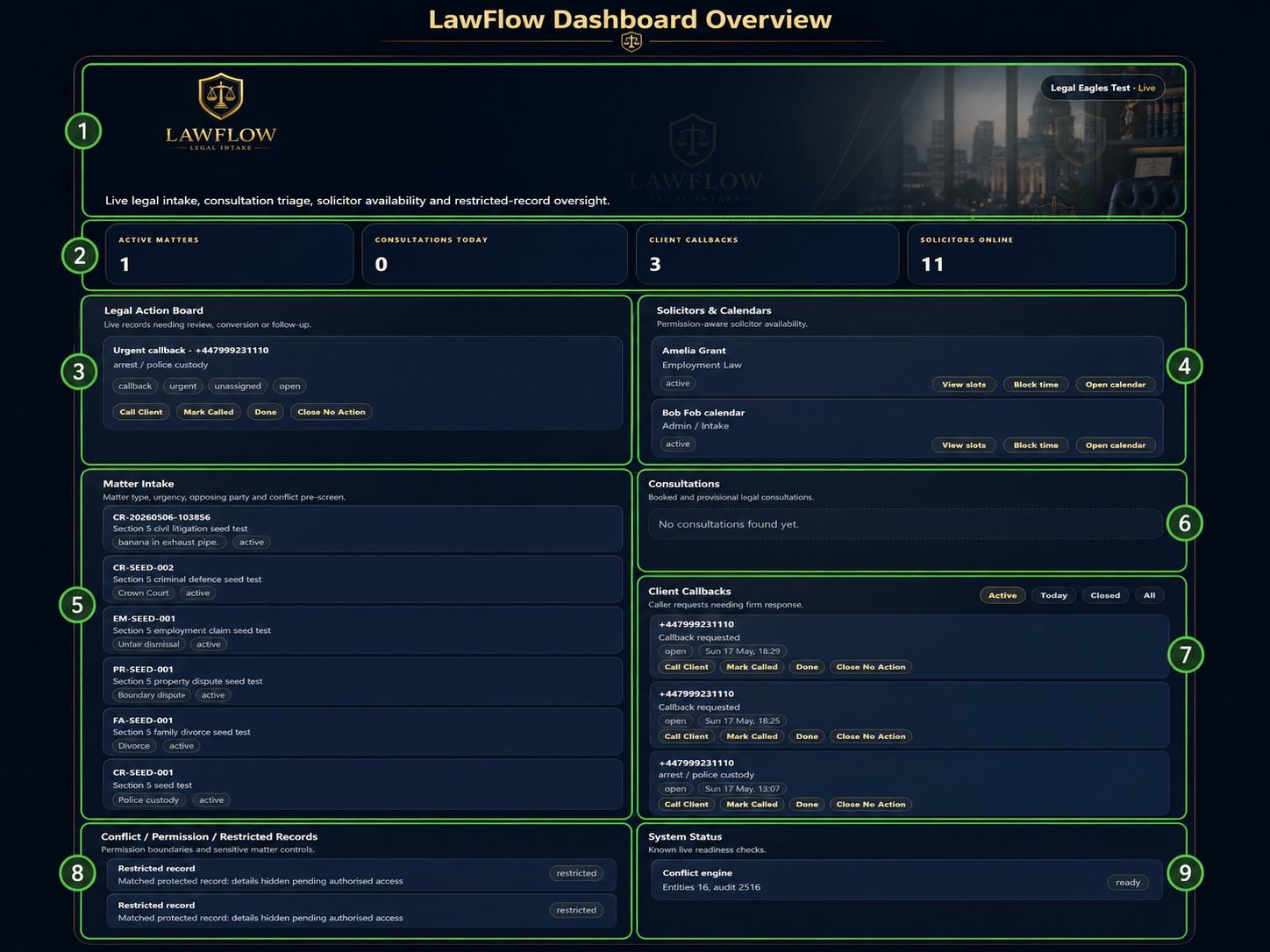
Header / firm overview — confirms the active LawFlow workspace, client environment and live dashboard context.
KPI summary cards — quick totals for active matters, consultations, callbacks and solicitors online.
Legal Action Board — the priority work queue for urgent callbacks, open actions and items needing follow-up.
Solicitors & Calendars — solicitor availability, calendar access and slot checking.
Matter Intake — new or existing legal matters, matter type, urgency and intake status.
Consultations — booked or provisional consultations for clients.
Client Callbacks — caller requests waiting for the firm to respond.
Conflict / Permission / Restricted Records — sensitive records, permission boundaries and protected matter warnings.
System Status — readiness checks and operational health indicators.
The sidebar is split into clear working areas so users can tell the difference between daily work pages, data and compliance pages, operational setup, and technical admin.
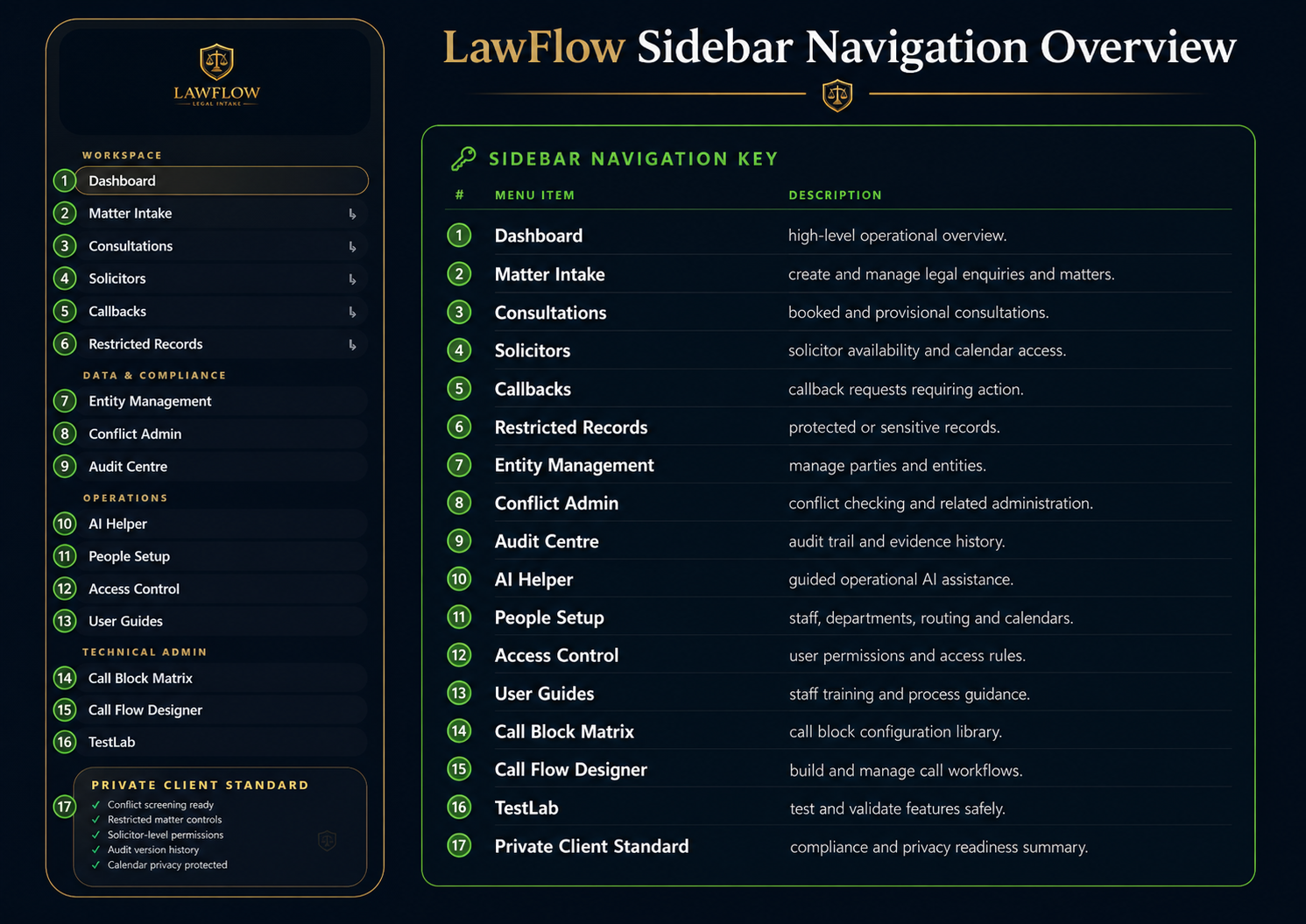
Most users will work in Dashboard, Matter Intake, Consultations, Callbacks, Entity Management, Conflict Admin, Audit Centre and AI Helper.
A typical journey is: call or enquiry received, record created, entity checked, matter or callback created, conflict status reviewed, action assigned and audit history retained.
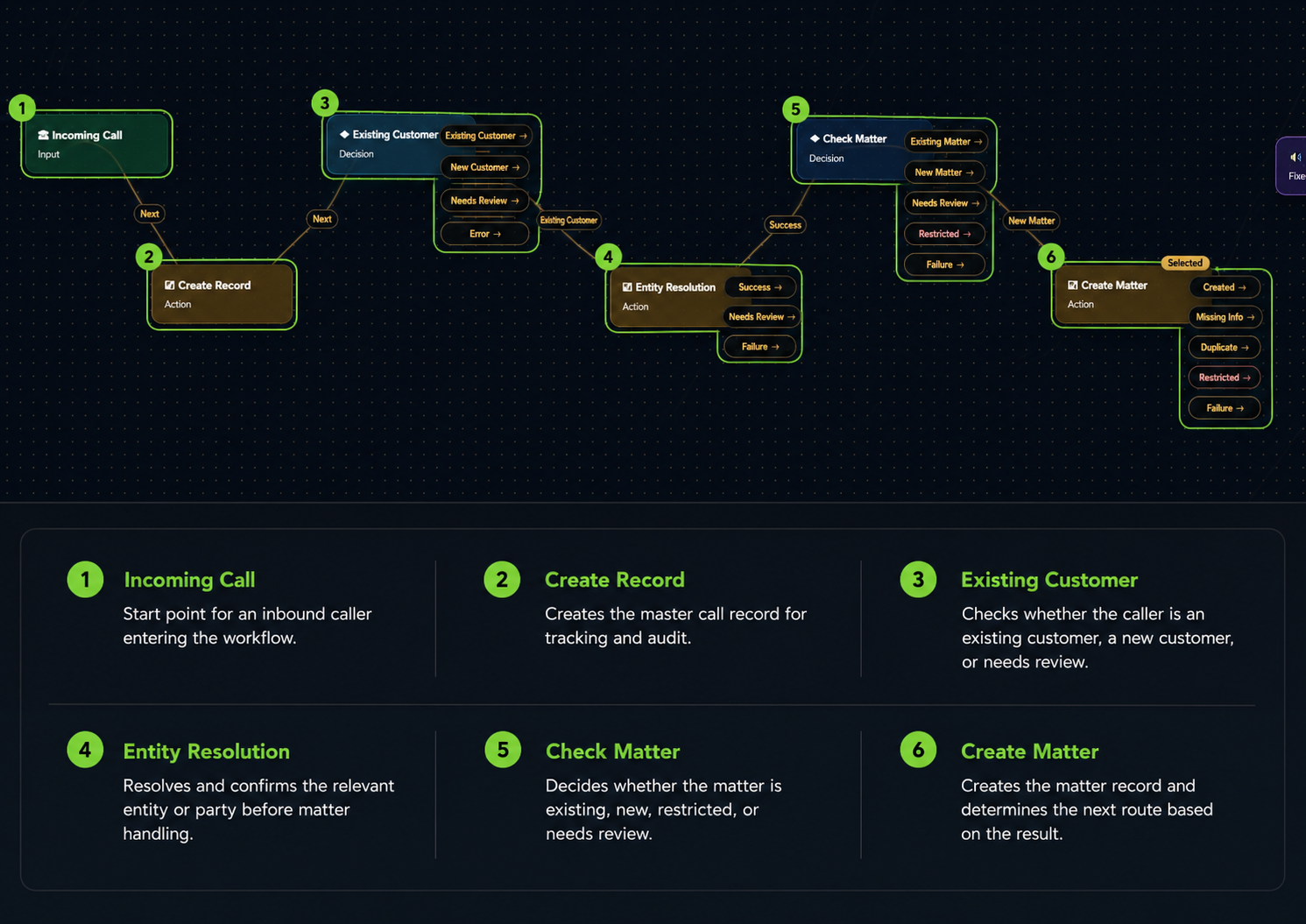
Some menu items open a separate LawFlow page. Others take you to a section lower down on the current dashboard page. This helps users move quickly without confusing a section jump for a different module.
Opens a separate LawFlow workspace or admin page.
Moves the user to a section on the dashboard page.
Shows readiness or protection information rather than a normal workspace.
Pages such as Call Flow Designer, Call Block Matrix and TestLab can affect live routing, testing or platform behaviour. These should be restricted to trained admins.